
We accept four 3D printing file formats: STL, OBJ, 3MF and STEP. If you already have one of them, just send it. This article covers what happens after your file reaches us: which format works best, what we check in the slicer, five file problems we see often, and what it costs when a file needs work. Checking a file is free.
If you don't have a file at all yet, start with our 3D modeling service article. If this is your first order, the full steps are in how to order a 3D print.
3D Printing File Formats: STL, OBJ, 3MF or STEP, Which to Send
- STL. The most common format; most files you download are STLs. It holds only a surface of triangles, with no color and no units. Because there are no units, a value of 10 can mean 10 mm or 10 inches.
- OBJ. Similar to STL, sometimes with color or texture. It often comes out of sculpting software and 3D scanning.
- 3MF. The format we recommend most. Units are stored in the file, several parts can live in one file, and slicer settings can travel with it. We save our orders as 3MF files in our slicer.
- STEP. A CAD format from software such as Fusion 360 or SolidWorks. The geometry is precise and still editable, so it's the best choice if the dimensions may need to change later.
Our online price calculator currently takes STL, OBJ and STEP. Send 3MF files on WhatsApp for now.
If you send an STL and a STEP of the same part, say so in your message, so the quantity doesn't get counted twice.
What We Check When a File Arrives
Before printing, we open every file in OrcaSlicer, the software we use to prepare prints. We look at:
- Slicer warnings. For example, a surface that isn't fully closed (non-manifold). Every warning has to be cleared before printing.
- Units and size. Whether the dimensions make sense for the object.
- Wall thickness. Areas that are too thin will be brittle or won't print.
- Number of parts. Whether the object is one part or several separate ones.
- Shape after a repair. If we fix something, we check that the shape still matches the original file.
If everything is fine, the file is ready to print. If there's a problem, we tell you what it is before doing any work.
5 File Problems We See Often
1. Holes in the surface (non-manifold). The model looks whole on screen, but there are small gaps in its surface. The slicer can't tell inside from outside. This can usually be fixed with a repair function, and then we check the shape again.
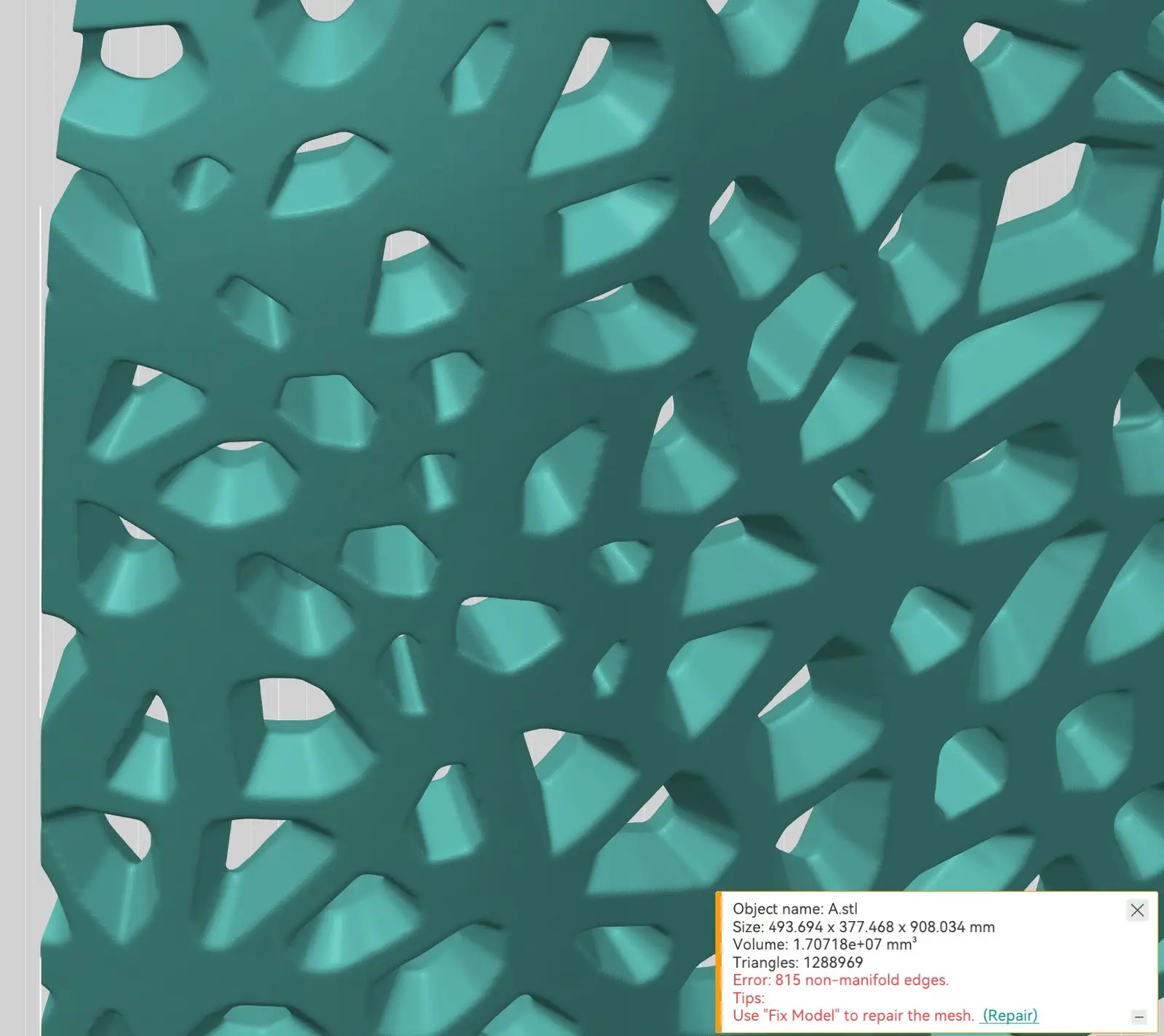
A lattice panel from a customer file: it looks whole on screen, but OrcaSlicer found 815 edges that aren't properly closed.
2. Flipped surfaces. In the slicer, some faces look dark. A common cause is that the model was mirrored in design software. Those faces need to be flipped back so they read correctly.
3. Wrong units. A model drawn in inches but read as millimeters comes out 25.4 times too small. The reverse happens too: our own CCTV adapter file below opened scaled about 10 times too large, almost 2 meters long and far past the edge of the build plate. Our online calculator flags a model whose size looks unusual.
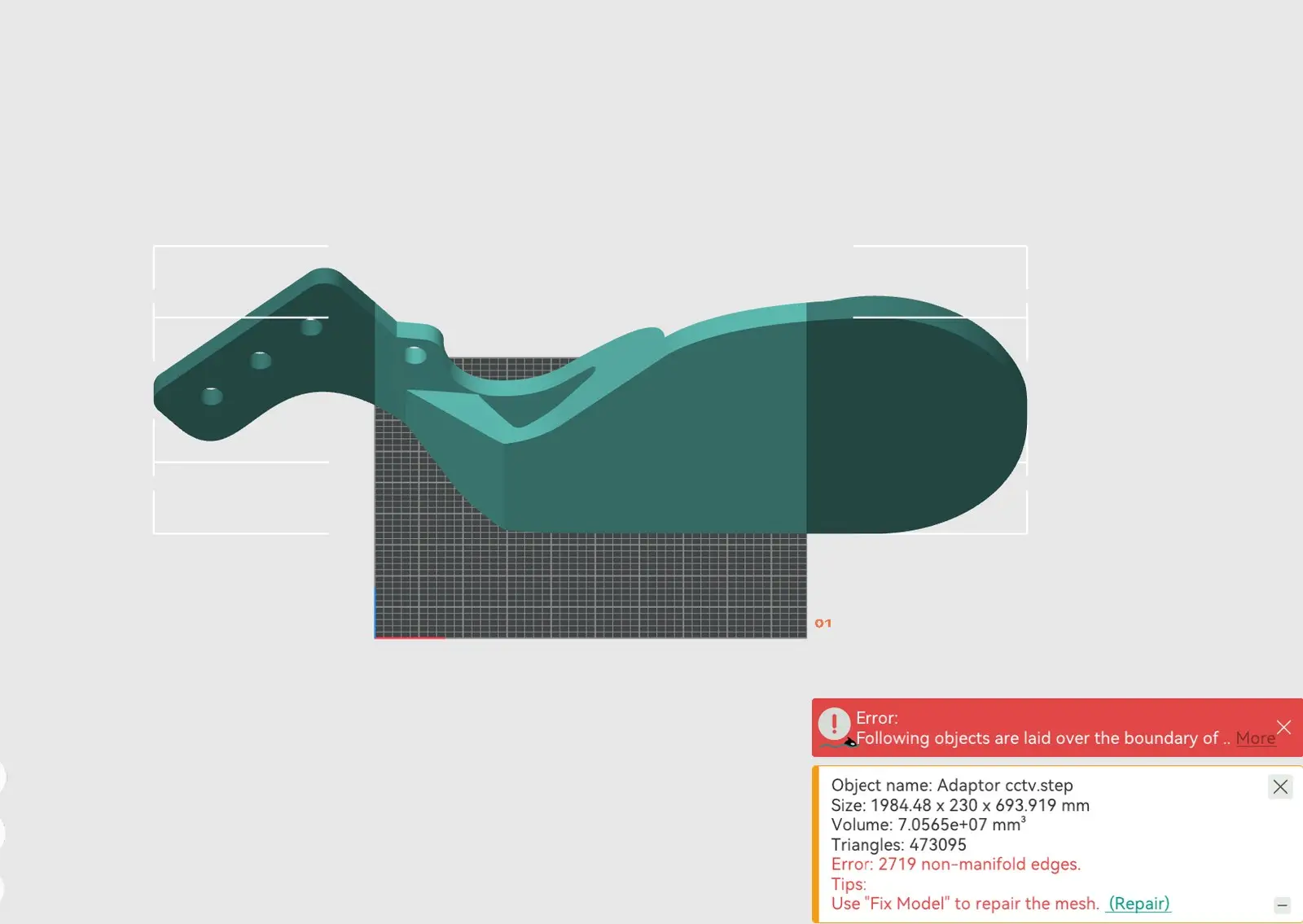
This CCTV adapter opened about 10 times too large (1,984 mm long), and its surface still has 2,719 edges that aren't closed.
4. Walls too thin. The limits we use: at least 0.8 mm for FDM and 0.6 mm for SLA resin. Below that, the feature can disappear during printing or break easily. The fix: thicken the walls, scale the model up, or switch to resin for finer detail.
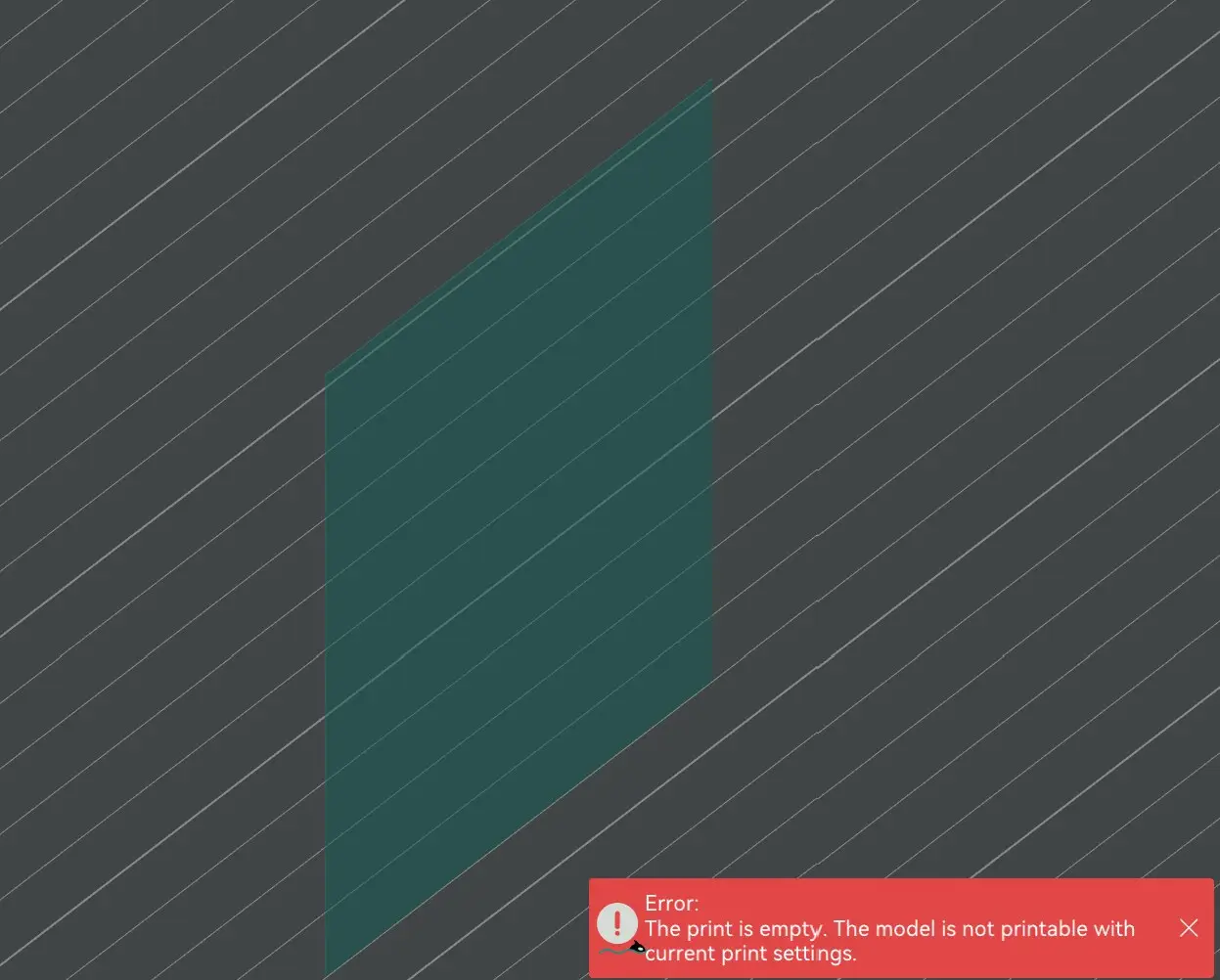
The extreme case: a surface with no thickness at all. The slicer finds nothing to print.
5. Separate pieces. One file turns out to contain several objects that aren't connected, for example an accessory floating just above the body. We ask first: are they meant to print separately, or should they be joined?
Files from Thingiverse, Printables and AI Generators
Files downloaded from Thingiverse, Printables or MakerWorld have usually been printed by someone else already, so they often work as they are. One example was a portable monitor stand from Printables, which we printed in FDM without changes. What usually needs checking is the size, because the design wasn't necessarily made for the item you own.
Files from AI generators are different. They can look good on screen, but the surface is often full of holes and the walls are thin in many places. For an AI-generated miniature, cleaning it up usually takes 2 to 6 hours of design work, depending on size and detail. Send the file first; we'll check it and estimate the hours before starting.
Scaling: Percentage or a Real Dimension?
Scaling requests come in two forms. Some people ask to "scale it down to 25%", for example for resin earrings that ended up about 15 × 21 × 17 mm. Others ask to "scale it up until the ball is 40 mm in diameter".
The second form is safer. A percentage depends on the file's original size, and that size may be wrong if the units are off. One number for the part that matters (diameter, height or width) is clear for both of us.
If the model must be used exactly as it is, say so: "don't modify or rescale". We won't change anything without asking first.
Who Fixes It and What It Costs
Checking a file is free. If the file needs fixing, the work is charged at our 3D modeling rate: IDR 150,000 per hour, minimum one hour, then per 30 minutes. Simple fixes such as closing gaps or correcting units are often done in under an hour, so they are billed as one hour (IDR 150,000). What takes longer is a file whose shape has to change, such as walls that need thickening in many places, or an AI file like the one above.
We send the hour estimate first, and work starts only after you agree. Rates and examples of design hours are in our 3D modeling service article.
Frequently Asked Questions
Do you charge for checking a file? No. We check every file that comes in and tell you if anything needs fixing.
My file is large. How do I send it? WhatsApp takes files up to 100 MB, email up to 25 MB. For anything bigger, send a Google Drive or WeTransfer link.
I'm not sure my file is right. Should I send it anyway? Yes. If it does need fixing, we explain the problem and send an hour estimate before starting any work.
Once the file is fine, how long until it's ready? For most orders, 2 to 4 business days from order confirmation. The breakdown is in how long 3D printing takes.
Have a File Ready to Print?
Send your file on WhatsApp, or upload an STL, OBJ or STEP to our online price calculator for an instant estimate. The minimum order is IDR 100,000. All our contacts are on the 3D Lab Bali links page.